Release Notes – 2021 R1

Release Notes – 2021 R1

Release Notes – 2021 R1

With our latest release, Flowingly becomes the ideal solution for organizations looking to get complete visibility over their processes, without hiring a team of SharePoint developers.

Process visibility is still way harder than it needs to be. Most organizations have no way to track submissions, tasks and approvals in real-time.

More importantly, their employees have to rely on their to-do list or Outlook Calendar to remind them what tasks they need to do.

Chances are, your organization is running into these exact issues today:

  • You follow up on requests via email or Teams.
  • You are missing SLAs because someone somewhere forgot to do their bit.
  • You have NO IDEA what stage your employee and customer onboardings are at.
  • You don’t have a complete picture of your process compliance, and neither do your auditors.

Want to change this? Keep reading to learn more, or get a trial now.

New: Current Step Visualizer

Ever wanted to pull up a Flow and immediately understand where each Step is sitting?

Or maybe you’ve hit the SUBMIT button and wondered what happens next?

Or even been tasked with a Step and need to quickly see what has gone on before?

Now you can.

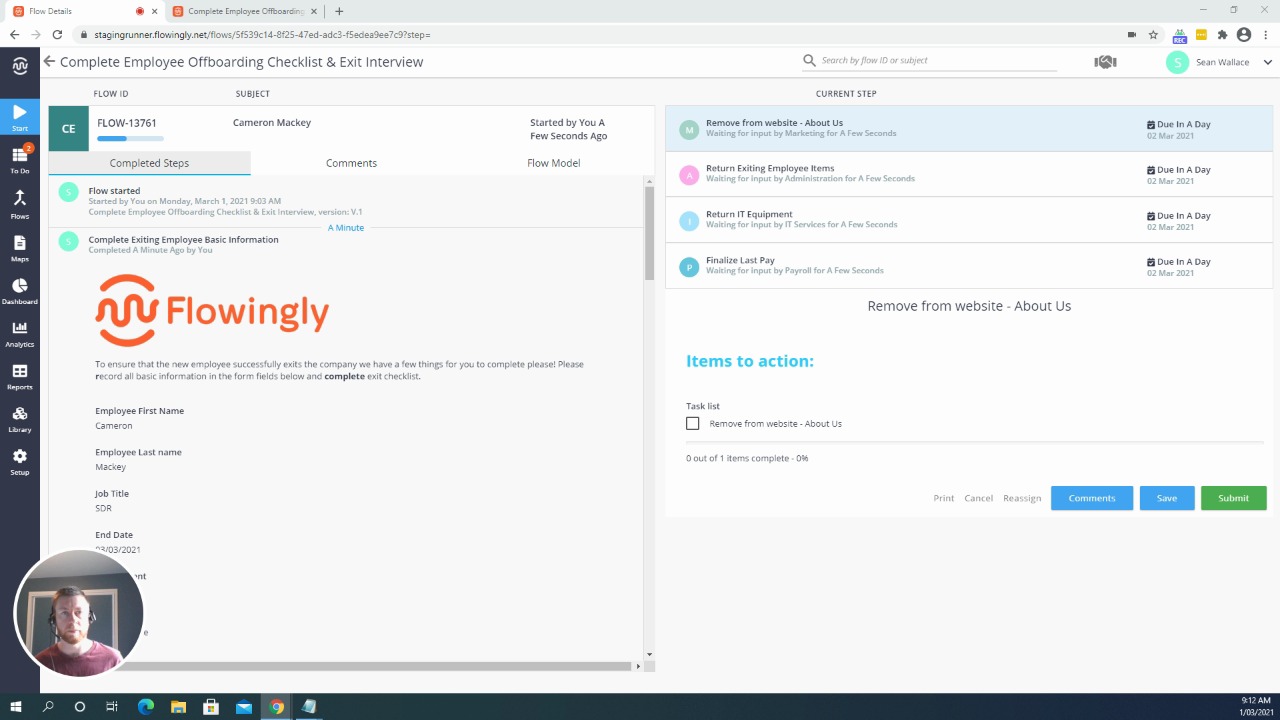
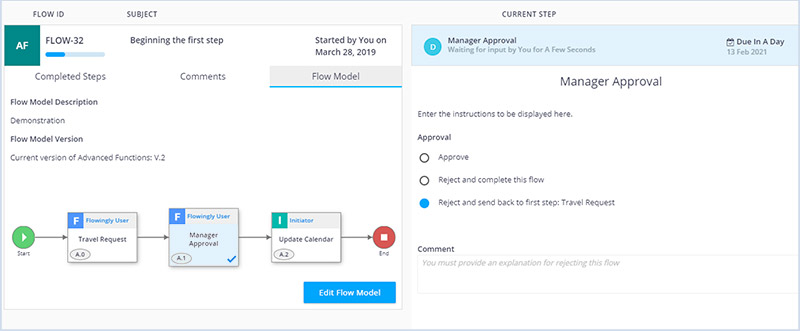
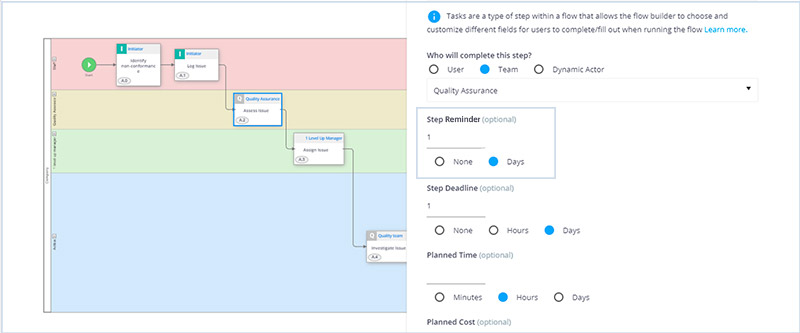
With the Current Step Visualizer, you get an immediate visual of where every Flow is sitting. Each Current Step will be highlighted in blue.

This is super handy for complex Flows or Flows that span multiple departments. Think about your Customer Onboarding Flow. At a glance you can see that the Finance team has sent the invoice, but that it hasn’t been paid yet. That the Account Management team had a successful intro session and has booked their second onboarding meeting. That Support has completed all of their tasks and that the customer is set up in your service desk.

This means more transparency and visibility for both employees and senior management.

New: Step Reminder

In a perfect world we’d all have flawless memories. We’d never forget the tasks that we need to do.

Unfortunately, that’s not the case and we struggle to remember the hundreds of tasks that we need to do in our work week.

Introducing Step Reminders.

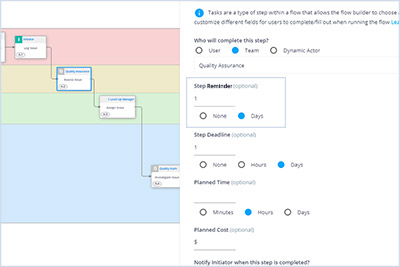
When building a Flow, you now have the ability to add a Step Reminder. In the event that the Step hasn’t been completed, this reminder will send the user a reminder at 9am X days from the day the Step was created.

An optional field, the Step Reminder will help your employees stay on top of critical tasks and plan their days ahead of time.

Combined with the new Current Step Visualizer, this takes your organization’s task management to the next level.

New: Cancellation Email

Ever wondered where one of your Flows went, only to realize that it was cancelled by someone else?

No longer.

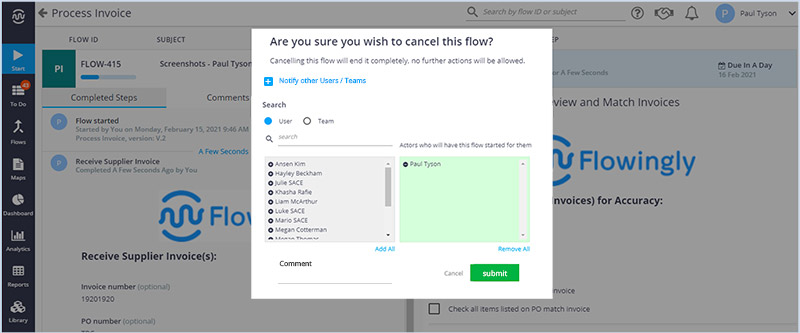
With the new Cancellation Email feature, when a workflow is cancelled by an authorized user the initiator will receive an email notification to say so.

Like Rejection Emails, the Cancellation Email will also contain a mandatory Comment field where the user cancelling the Flow will need to explain the reasoning. They will also have the ability to include other users within the email to notify all relevant parties.

Upgraded: User Delete prompt for databases

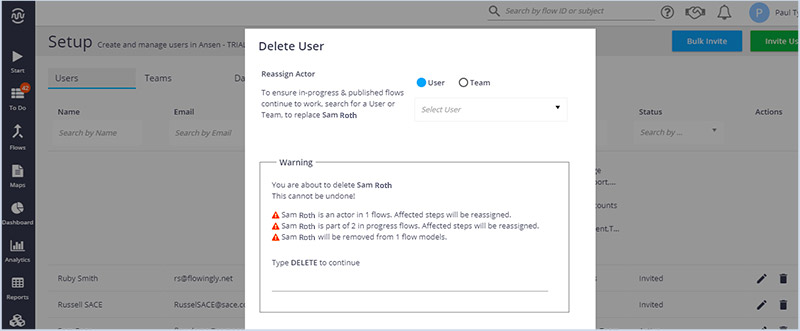
Business Admins will be happy to hear that the User Delete prompt will now apply to databases!

Previously, when you deleted a user you would be prompted to reassign their Tasks and Approvals.

Now, if that user is also listed in a database, you will be prompted to automatically replace that user with a new one.

This makes system governance easier than ever before, especially for those with large user numbers and multiple databases.

Upgraded: Step Statuses

Most workflow tools give a basic status of an overall workflow. If it’s in progress, completed or rejected.

But that’s not much help when you have strict compliance regulations to meet. When the auditors want to know exact details. Like where and why things were rejected. Or why certain steps were abandoned.

When the auditors are looking through your Non-Conformance process you don’t want to have to clarify exactly what has happened at each stage.

With our Step Statuses, we aim to make your Flows tell the entire story.

The new Reject, Sent Back and Abandoned statuses give users a greater understanding of the history of a Flow. They can now see which Step a rejected Flow was sent back to, and which Steps were abandoned due to a rejection.

As a result, your Flow reports will include a more detailed audit trail than ever before.

To learn more about how Flowingly can help you manage requests, tasks and approvals with real-time visibility get a trial today!

The Best Features from 2020

The Best Features from 2020

The Best Features from 2020

Last year Flowingly focused on a rapid release of new features which had been requested by our customers, so here are a few of the key ones in case you missed them. We are shortly set to release our first update of 2021 so stay tuned!

#1 Rules Engine

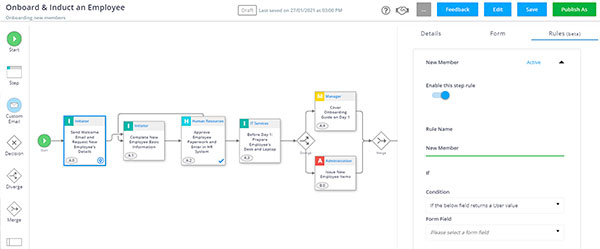
Next time you create or edit a workflow step you’ll notice a new Rules tab alongside the Details and Form tabs. This new rules tab allows you to use If This > Then That logic to direct a workflow. The first rule to be released will allow you to set the Assignee of a future step based on an action taken in a previous step.

Using a Database, you can now assign a Step based on relationships within that Database.

#2 Map UI

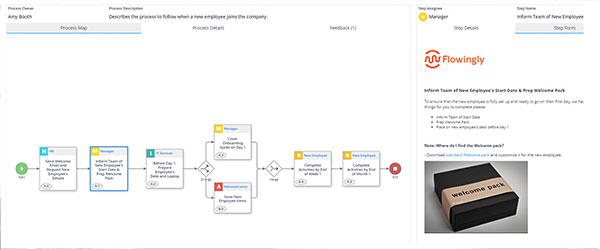
Interact with Steps directly from the Runner! Using the new map interaction features, users now have the ability to see at a glance exactly what is required at every stage of a process. This means you no longer have to open up each map, just click and drill-down!

This makes for easier navigation and access to the exact Procedures, Policies and Work Instructions that sit within a process.

#3 Process Details

Ever wonder who the owner of a process is? Or need a bit more context around the purpose of the process?
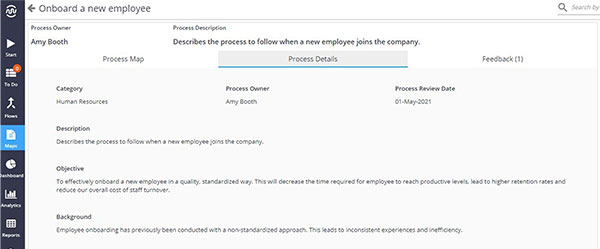
You now have the ability to add more details into a process summary. The following fields can now be edited by admins and accessed by users:

  • Process Owner
  • Process Review Date
  • Background
  • Objective
  • Input
  • Output

This now gives an admin more specified information on the objective of a Workflow and what changes could be made to improve the process.

It’s also good to mention some favourite new functions based on feedback. Knowing how our customers use the platform helps guide development on what features we add next.

# Printer-Friendly Flows

We’ve improved the export Flow functionality and allow users to save it in a more printer friendly format.

The new document now includes a comment section which will include all comments added by workflow users while the flow was in progress.

A common use-case is to include comments made on an expense request process, printed for archival purposes.

# Table Sums

Table sums can now be used as a value in subsequent steps. This means that you can pull both currency and number sums direct from a table, either to display them easily to a user or to help route your Decision pathways.

You can also use the sums within formula fields and custom emails. So, if you have a column in a table that captures amount, in another column you could capture discount rate, and in a formula field below you could calculate the discounted rate.

This opens up a range of possibilities, especially for all those using Flowingly for financial workflows such as Capital Expenditure or Expense Management.

That was the best of last year but with 2021 we have plans for more functionality and simplification as we move to make Flowingly the best possible process and workflow platform for our users. If you have feedback or questions about what you would like to see, please leave us a comment.

Thanks for taking the time to read the blog and we look forward to bringing you more great features throughout the coming year.

If you’d like to learn more about how Flowingly can help you manage approvals, tasks and workflows for your business, get a trial today!

Control Hazards & Risk in the Workplace

Control Hazards & Risk in the Workplace

Control Hazards & Risk in the Workplace

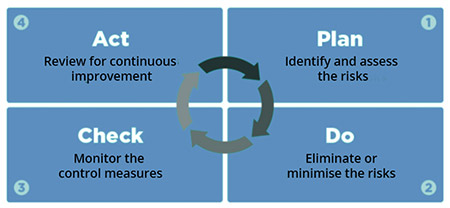
Worksafe New Zealand recommends organizations continuously review workplace health and safety by following the Plan-Do-Check-Act framework.

The Control Hazards and Risks in the Workplace automated process is aligned with this framework and ensures that hazards and risks are identified, reported, assessed, and mitigated as part of daily operations.

This process also completely replaces manual paper-based health and safety forms. Having lots of paperwork does not equal good health and safety. However, having clear, easily accessible, and engaging health and safety processes, enables a positive health and safety culture, and significantly reduces risks in your organization!

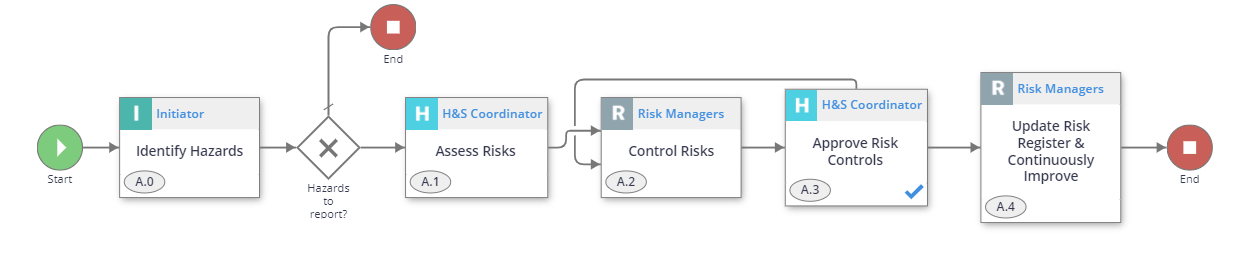
1. Identify Hazards Initiator

The process can be kick started by any staff member who identifies a hazard, or as part of a routine health and safety inspection.

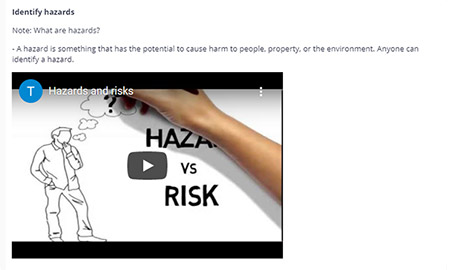
A good place to start is analyzing situations that can be an immediate threat or cause harm. These often occur in:

  • The work environment
  • As a result of how tasks are performed
  • Plant and materials
  • Workplace design and management

2. Assess Risks H&S Coordinator

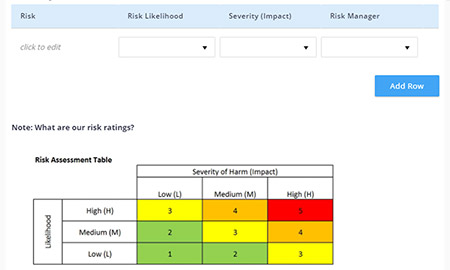
If hazards were identified, then is important that the risks associated to these hazards are assessed. Assess each risk using the Risk Assessment Table to determine:

  • The severity of the risk
  • The likelihood of the risk occurring

Then assign the risk to a Risk Manager who will control the identified risk(s).

3. Control Risks Risk Managers

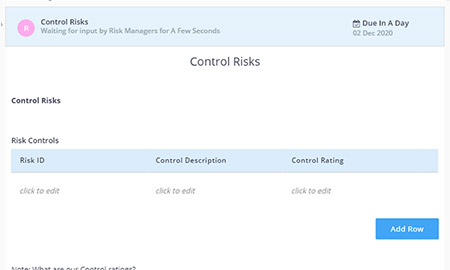
The Risk Managers will now receive a notification to control the risks.

It is recommended that all identified risks are completely eliminated from the workplace. However, if this is not possible then risks should be minimized in a practical manner.

4. Approve Risk Controls H&S Coordinator

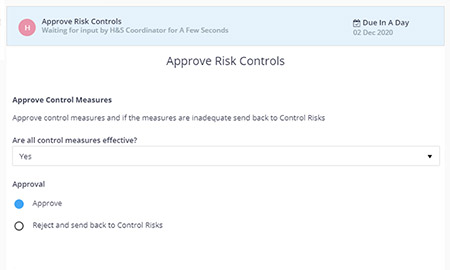
Once controls are put in place to eliminate or minimize the risks, the H&S Coordinator will review their effectiveness and approve. If some controls are not effective the flow will go back a step, until all controls are found to be effective.

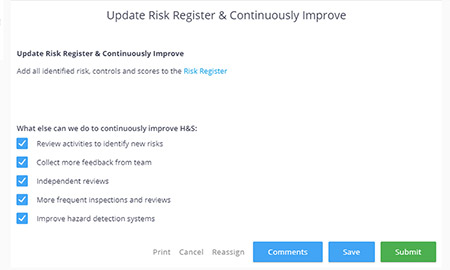
5. Update Risk Register & Continuously Improve Risk Managers

A risk register is a central database for the organization’s risks and controls. This database could live in Flowingly or it might be managed in a different system. Keeping the risk register updated is essential and significantly increases regulatory compliance. Also don’t forget to always look for opportunities for continuously improving H&S in the workplace!

Release Notes – 2020 R4

Release Notes – 2020 R4

Release Notes – 2020 R4

Earlier this year, Flowingly saw us release a raft of Process Mapping upgrades. Well, that wasn’t the only big project we were working on for 2020.

With the latest release of Flowingly we’re taking workflow up a level with our new Rules engine! Retaining the same ease-of-use that you have come to expect, the Rules engine makes it easier than ever for business users to create bespoke workflows that suit THEIR business.

Rules engine? What is that?

Next time you create or edit a workflow step you’ll notice a new Rules tab alongside the Details and Form tabs.

This allows you to use IF THIS THEN THAT logic to direct a workflow. The first rule to be released will allow you to set the Assignee of a future step based on an action taken in a previous step.

Using a Database, you can now assign a Step based on relationships within that Database.

How would I use it?

There are all sorts of ways you can use this:

  • Allocate a step based on geography. For example, if a user selects in Step 1 that their request is for the Wellington office then it allocates Step 4 to the Wellington Area Manager. Alternatively, if they select Auckland it will allocate to the Auckland Area Manager.
  • Send a step to someone based on responsibility. An easy way to manage when one Capital Expenditure category needs to go to Joe Bloggs in Finance, and the others all go to Jane Smith.
  • Facilitate multi-level management relationships. Using Rules you now have the ability to allocate a step to an employee’s regional manager, country manager or any other report. This helps you control all those dotted lines!

This is just the beginning…

The Rules engine that you see now is just the first version. We have a whole list of rules that we’ll be adding to it over the next year.

And that’s where we need you. If you have rules you want to see, make sure to get in touch with your Flowingly Customer Success Manager.

What else has changed?

Table sums can now be used as a value in subsequent steps. This means that you can pull both currency and number sums direct from a table, either to display them easily to a user or to help route your Decision pathways.

You can also use the sums within formula fields and custom emails. So, if you have a column in a table that captures amount, in another column you could capture discount rate, and in a formula field below you could calculate the discounted rate.

This opens up a range of possibilities, especially for all those using Flowingly for financial workflows such as Capital Expenditure or Expense Management.

For more information on Rules make sure to check out our latest KB articles on Step Rules and Databases. Or if you’re looking to use the new Table sum check out the Form Fields article.

If you’d like to learn more about how Flowingly can help you manage approvals, tasks and workflows for your business, get a trial today!

How to Write Engaging Processes

How to Write Engaging Processes

How to Write Engaging Processes

Have you ever noticed that there are some processes that you can read from end-to-end, while others lose you at the first step?

Why does this happen? Well, it’s just like reading a book. Some books will grab you right from the first page, and others will end up sitting unread on your bookshelf…

Process writing is a key part of getting people engaged with processes, and with the wider process improvement journey. By engaging your audience, you will get better buy-in to process improvement and significantly increase your likelihood of organization-wide adoption.

Let’s have a look at how to write a good process.

Process improvement success = 1 part process, 1 part engagement

When we implement our process excellence programs for our customers, we spend more time on engagement than any other area. From nailing your internal communications, through to rolling out your first processes, engaging your employees throughout the journey is key to success.

The best part about creating an engaged, process-driven workforce is that not only will it improve how your processes function, it will also improve individual performance. This is because it is human nature to work towards a common, clearly-defined, better state.

A few “best practice” tips to keep in mind

Walk them through it

A well-written process should be able to walk a brand-new employee through the process step-by-step. Yes, you may have raised that purchase order in Xero a thousand times, but remember that your new employee has never done that before. So walk them through it.

Don’t overcomplicate it

Keep it nice and simple. No one is ever going to read your multi-page, 45-step guide to dealing with a customer complaint. Aim to simplify every process you write. The goal is to remove bloat, not add more.

It’s about incremental improvements

Your first take will always be a rough guide. There’s a reason most process applications have version control. Don’t let perfection get in the way of progress. Map the process and then provide it to key stakeholders for feedback. Then rinse and repeat.

The keys to writing an engaging process

Focus on the common path

There will always be exceptions to the process. Don’t get hung up on the “what ifs”. Focus on what happens 90% of the time, and remove any uncommon variations to keep your process simple.

Your process should look nice and streamlined, not like a gigantic spider’s web.

Remove steps by grouping tasks

Ever seen a process which has 4 steps in a row designated to the same person or team? This is super-common, and most often it’s unnecessary. By grouping common tasks under a single step you can quickly simplify your process.

Doing this will allow you to keep your processes short and simple. Aim for a maximum of 10 steps within a process. This will make your processes much less daunting when someone accesses them for the first time.

Actions, actions, actions

Always write your processes with an action in mind. What action do you take? You onboard a new employee, you request Capital Expenditure, you process an order.

Every process name and step name should start with a verb. Not only does this create a standardized naming convention, it also makes it clear for users what action they are meant to take.

Add rich content (as much as possible)

Everyone learns differently. Some of us like to read, some like to watch, some like to listen. It’s important that your processes cater to your entire audience. Keep people engaged by adding in rich content such as videos, images, guides, documents and hyperlinks.

Rather than having written instructions for your H&S induction, insert a video. Instead of typing out what your company welcome pack includes, take a photo and add that into the process.

Quick tip: videos don’t have to be daunting and high-production. Tools like Vidyard are great for walking someone through actions on your screen. Want to walk someone through how to raise a Purchase Order in your ERP? Use Vidyard to record your actions while you’re doing it, showing exactly where to click and what to enter.

Use workflow to deal with exceptions

When documenting a process, focus on the common path and remove exceptions. When turning that process into an automated workflow, you can add those exceptions back in. This is because a workflow will walk people down the correct path without showing them any of the myriad other routes they could have taken.

Use decisions and parallel pathways to manage this. Decision pathways will use defined logic to decide which path the process should take, whereas parallel pathways will enable multiple steps to happen at the same time.

Treat your writing like a process

When documenting your next process, follow the tips above just the same as you would with a process. Get your structure. Apply the best practice principles. Group the tasks. Name with a verb. Add in rich content. Pretty soon you’ll have a highly engaging process to share with your workforce!

Want to find out how Flowingly can help you build processes that your workforce will actually engage with? Jump on a call with one of our process specialists today.

If you’d like to learn more about how Flowingly can help you on your process improvement journey, get a demo today!